 Unlimited Watchlists
How to import a Chartink screener into TradingView
Updated July 17, 2026
Chartink is where many Indian traders run their scans; TradingView is where they read charts. The gap between the two is manual labor: a scan can return dozens of stocks, and there's no built-in way to send them to TradingView. Here are both ways to bridge it — the manual method, and the one-click method.
Method 1: Copy symbols by hand (free, tedious)
- Run your screener on chartink.com and copy the symbol column — page by page, if the results span multiple pages.
- Paste the symbols into TradingView's watchlist search one at a time, or format them as a comma-separated list (with exchange prefixes like
NSE:) and use the watchlist import option. - Repeat tomorrow, because scan results change every day.
This works, but it collides with two walls: TradingView's free plan caps how many watchlists and symbols you can keep (see the watchlist-limit guide), and re-importing a fresh scan every market day gets old fast.
Method 2: One-click import with a free extension
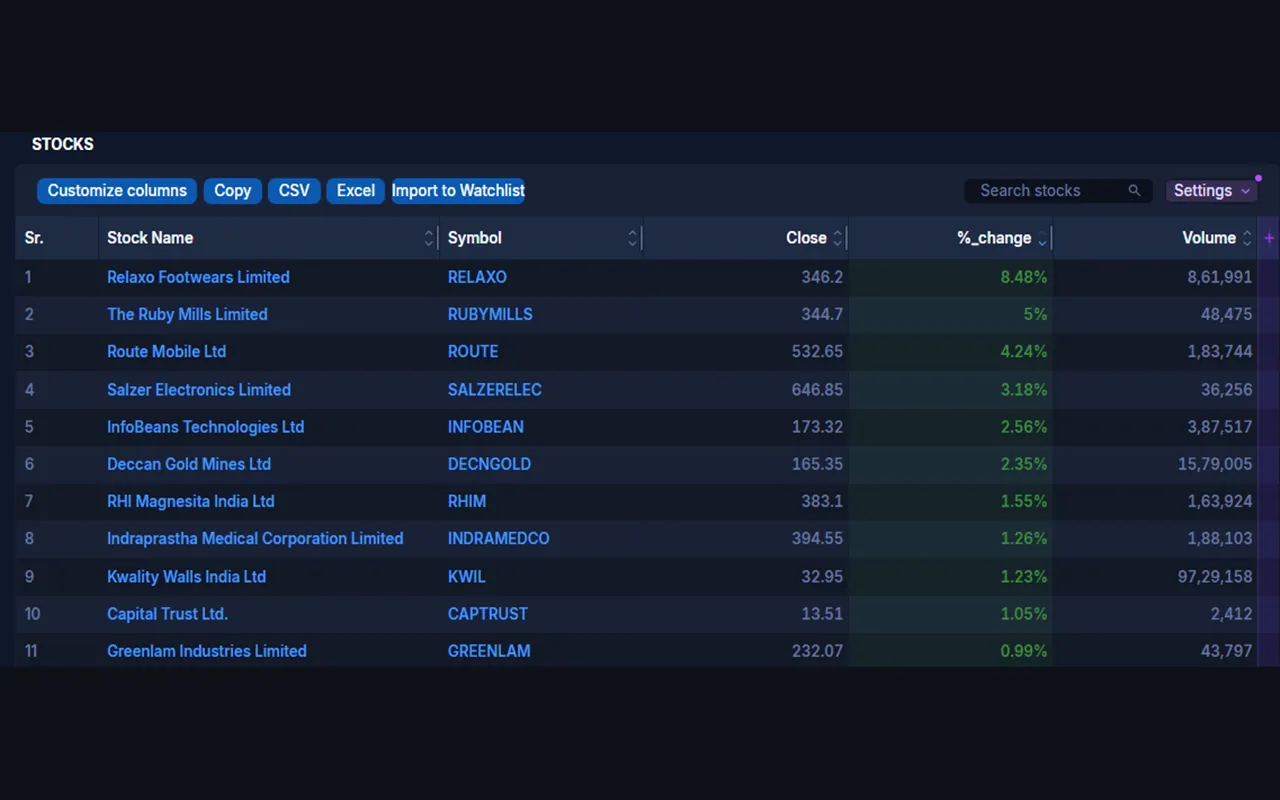
Unlimited Watchlists for TradingView adds an Import to Watchlist button directly onto every Chartink screener page:
- Open your screener on chartink.com as usual.
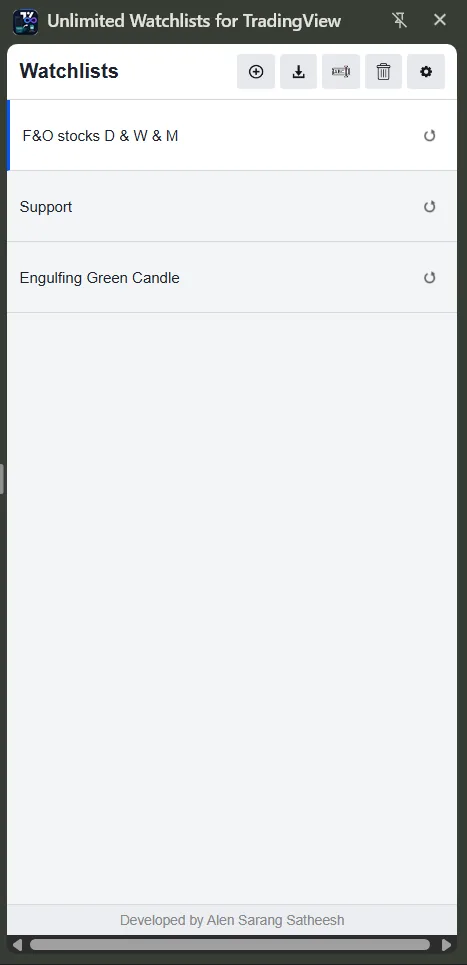
- Click "Import to Watchlist." Every stock in the results — including all pages — is saved into a side-panel watchlist named after the screener.
- Click any symbol in the side panel to open its chart on TradingView. Press Space to step through the whole scan, chart by chart.
You can also import without visiting the page: choose Import from Chartink in the side panel and paste the screener's URL.
Re-sync instead of re-import
Each imported list remembers which screener it came from. When tomorrow's scan produces new results, hit the re-sync button on that watchlist — the list refreshes with the current results in one click. No copying, no duplicate lists piling up.
Frequently asked questions
Does it capture all pages of screener results?
Yes. If your scan returns multiple pages of stocks, the import captures every page — not just the one on screen.
Do I need a paid TradingView or Chartink account?
No. The extension is free and works with free accounts on both sites. Watchlists live in the browser side panel, so TradingView's plan limits don't apply to them.
Where do the imported symbols go?
Into the extension's side panel, stored locally in your browser. Nothing is uploaded to any server, and your TradingView account watchlists are untouched — details in the privacy policy.
From scan to charts in one click
Free, private, and re-syncs your Chartink scans daily.
Add to Chrome — Free